Monday, February 25, 2013

Smap check user information


 login to SMAP first
then go to Individual then Query->Accumulator


input number Ex: 207xxxxxxx or 307xxxxxx then click query

then have tab

1. Customer Information: owner number information.
2. Subscriber Information: phone number information.
3. Account Information:
4. Balance Record List: list all balance this number have + expire date
5. Service List: all available service this number have.
6.Product List: show manual and auto subscribe product
7. CUG
8. Accumulative Amout


Sunday, February 24, 2013

Welcome to Web SMAP

link http://192.168.151.13:7772/frameset/login.action?loginLocale=en


1. type username.
2. type password.
3. input verification code
4. click login

Friday, February 15, 2013

Create service Radio sms

If no short code yet.
1. Tell Mr. khamhoung to create shortcode tariff MO 500 kip/sms, MT free.
MO 500 kip/sms => customer send to short code deduct 500 kip/ sms.
MT free => short code send to customer free.
2. Tell Mr. phokham route short code to service VASAPP

if already have short code
Step 1: Create short code service
1. Go to data base mysql http://192.168.150.251/phpmyadmin/
2. Login user: root password r*** and then click Go

3. Select data base "getting"

4. Select table "service"

5. Click "Insert" and input data

serv_name:
date:
shortcode:
username:
password:
then click Go


Step 2: Route short code to script
we store script to get sms in
192.168.150.251/vasapp/getting/sms_getting.php


1. Login to 192.168.150.244 (proxy)
2. Open script  on /var/www/gateway/sms_center.php and modify script 2 point

check short code
route short code

Step 3: login web report
1. follow link to login http://fun.beeline.la/beebox/
 
after login


MS SQL server create Procedure

CREATE PROCEDURE ProcedureName
    -- Add the parameters for the stored procedure here
    @Param1 int,
    @Param2 int
AS
BEGIN
    SET NOCOUNT ON;

    -- Insert statements for procedure here
    SELECT <@Param1, sysname, @p1>, <@Param2, sysname, @p2>
END

---------------------------------------------------------------
--CALL PROCEDURE
EXEC ProcedureName 


or 
 

MS SQL server cursor

DECLARE @number INT,
        @date DATETIME

DECLARE cur_name CURSOR FOR
    SELECT RAND()*100,GETDATE()
OPEN cur_name
    FETCH NEXT FROM cur_name INTO @number,@date
WHILE @@FETCH_STATUS = 0
    BEGIN
        PRINT CAST(@number AS VARCHAR)+'/'+CAST(@date AS VARCHAR)
       
        --- statement for do something
        --- statement for do something
  
        FETCH NEXT FROM cur_name INTO @number,@date
    END
CLOSE cur_name
DEALLOCATE cur_name

Thursday, February 14, 2013

VAS Create DB in VASDB1

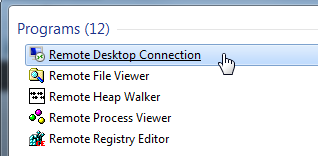
1. Remote server via remote desktop. go to All programs-> Accessories -> remote desktop connection


2. On Computer type 192.168.150.242 then click Connect

VAS Create DB in VASDB2

1. Remote via VNC, login to 192.168.150.246


2. Login to server


3. Create "folder_name" for database file on D:\DBData


4. Create "folder_name" for database log on C:\DBLog


5. after create folder in VAS-DB2. Open program on PC


6. Create table  by right click on Databases and select New Databases...


7. Type databases name:
    change database file part to D:\DBData\"folder_name"
    change datacase log part to C:\DBLog\"folder_name"